

Introduction
The Kindle Paperwhite Signature Edition offers a myriad of features to enhance digital reading. Whether you are new to Kindle or a seasoned reader, this guide provides essential tips and tricks to optimize your eReading experience. From the initial setup to personalization, these insights will help you unlock the full potential of your device and enjoy a seamless reading journey.
Unveiling the Features of Kindle Paperwhite Signature Edition
The Kindle Paperwhite Signature Edition stands out with advanced features designed for the avid reader. Its 6.8-inch display, adjustable warm light, and sleek flush-front design set the standard for eReaders today.
- Key Specifications and Highlights
- 32 GB Storage: Store thousands of books.
- Wireless Charging: Recharge without cables.
- Auto-Adjusting Front Light: Suitable for any reading environment.
- Waterproof Design: Safe for poolside and bathtub reading.
Understanding these features will set the stage for setting up your Kindle for the best performance.
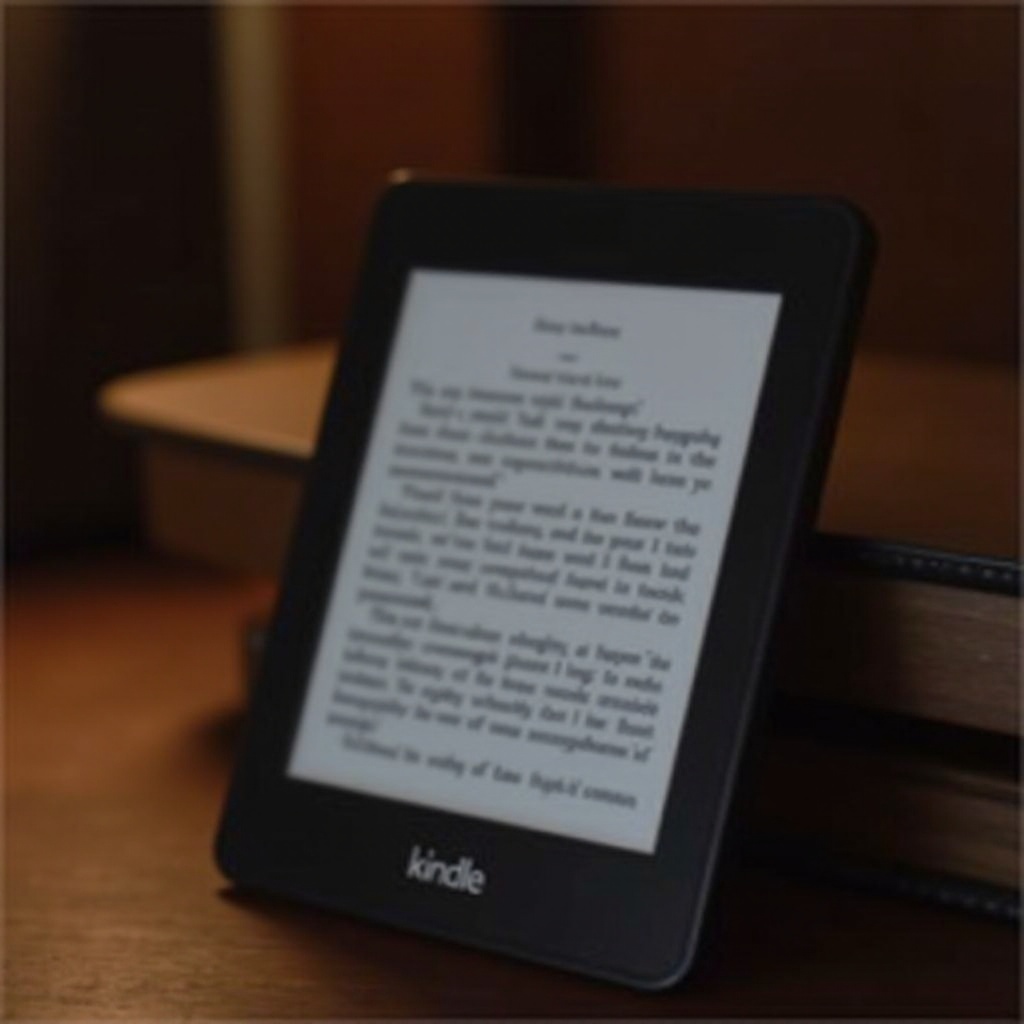
Setting Up Your Kindle for the Best Experience
A smooth setup is crucial for enjoying an uninterrupted reading session. Here are the steps to ensure your Kindle is ready to go.
- Quick and Easy Setup Guide
- Power on your Kindle with the power button.
- Select your preferred language.
-
Connect to a Wi-Fi network for downloading eBooks and updates.
-
Connecting to Wi-Fi and Amazon Account
- Access Wi-Fi & Bluetooth settings, choose your network, and enter the password.
- Log into your Amazon account to sync purchases and personalize your experience.
With your device set up, the next step is personalizing your reading experience to match your preferences.
Personalizing Your Reading Preferences
Customizing your Kindle makes reading more pleasurable by tailoring settings to your liking. Adjusting screen settings and fonts can significantly improve readability.
- Adjust Screen Settings and Fonts
- Tap the ‘Aa’ icon during reading sessions to alter text size and font style.
To further enhance your reading environment, experiment with different themes and layouts.
- Customize Themes and Layouts
- Choose between light and dark themes via settings.
- Organize your home screen and library categories for easy access.
These personalization options set the foundation for exploring your device’s advanced features.
Utilizing Advanced Features
Beyond basic functions, the Signature Edition boasts powerful tools and integrations. Kindle Unlimited and Audible offer expanded reading opportunities.
- Exploring Kindle Unlimited and Audible Integration
- Subscribe to Kindle Unlimited for access to thousands of eBook titles.
- Pair your device with Audible to enjoy audiobooks seamlessly.
Additionally, the built-in tools like dictionaries and X-Ray enhance understanding and engagement.
- Navigating the Built-in Dictionary and X-Ray
- Tap on words for instant definitions via the dictionary.
- Use X-Ray for detailed insights into characters and themes.
With an understanding of these features, managing your eBook library efficiently will ensure a streamlined reading experience.

Managing Your eBook Collection
Keeping your eBook library organized enhances navigation and access to your favorite titles. Effective organization can improve your reading habits.
- Organizing with Collections
- Sort books by genre, author, or personal interests.
Utilize cloud storage features for optimal space management on your device.
- Cloud Storage and Download Management
- Store less frequently read eBooks in the cloud.
- Download books on demand to conserve storage space.
The next step is to enhance connectivity and syncing for a seamless reading experience across your devices.
Enhancing Connectivity and Syncing
Enhanced connectivity options ensure access to your library without interruption. Syncing across devices allows for a smooth transition from one reading context to another.
- Sync Across Devices for Seamless Reading
- Enable Whispersync to keep your place across devices.
- Connect with Goodreads for a richer social reading experience.
Maintaining seamless connectivity ties directly into optimizing battery life and managing your device’s storage efficiently.
Tips for Battery and Storage Optimization
Efficient battery usage and smart storage management keep your Kindle running smoothly, ensuring uninterrupted reading sessions.
- Extending Battery Life
- Reduce screen brightness and disable Wi-Fi when not needed to save on power.
- Regularly use Airplane Mode to conserve battery after downloading books.
Effective storage management ensures that your device always has space for new reads.
- Effective Storage Management
- Delete locally stored books once read to free up memory.
- Manage content directly from the ‘Content and Devices’ section.
With your device optimized for performance, addressing any potential troubleshooting issues proactively will further enhance your Kindle experience.
Common Troubleshooting Tips
Troubleshooting common issues promptly can prevent frustrations and keep your Kindle functioning properly. Here are some swift solutions:
- Resolving Connectivity and Software Issues
- Restart your device to solve minor hiccups.
- Keep software updated to minimize bugs.
A proactive approach to troubleshooting ensures a smoother, more satisfying reading journey.
Conclusion
By mastering your Kindle Paperwhite Signature Edition through these comprehensive tips and tricks, you enhance not only your reading efficiency but also the overall enjoyment of your literary journey. Each feature and customization option explored helps create a tailored reading environment, making your Kindle an indispensable tool for 2024 and beyond.
Frequently Asked Questions
How do I reset my Kindle Paperwhite Signature Edition?
Press and hold the power button for 40 seconds, then release.
Can I read other formats besides Kindle eBooks on my device?
Yes, you can load PDFs and other formats via email or USB transfer.
Is it possible to get library books on my Kindle Paperwhite?
Yes, connect your Kindle to your local library’s eBook service like OverDrive for free eBook lending.