
Introduction
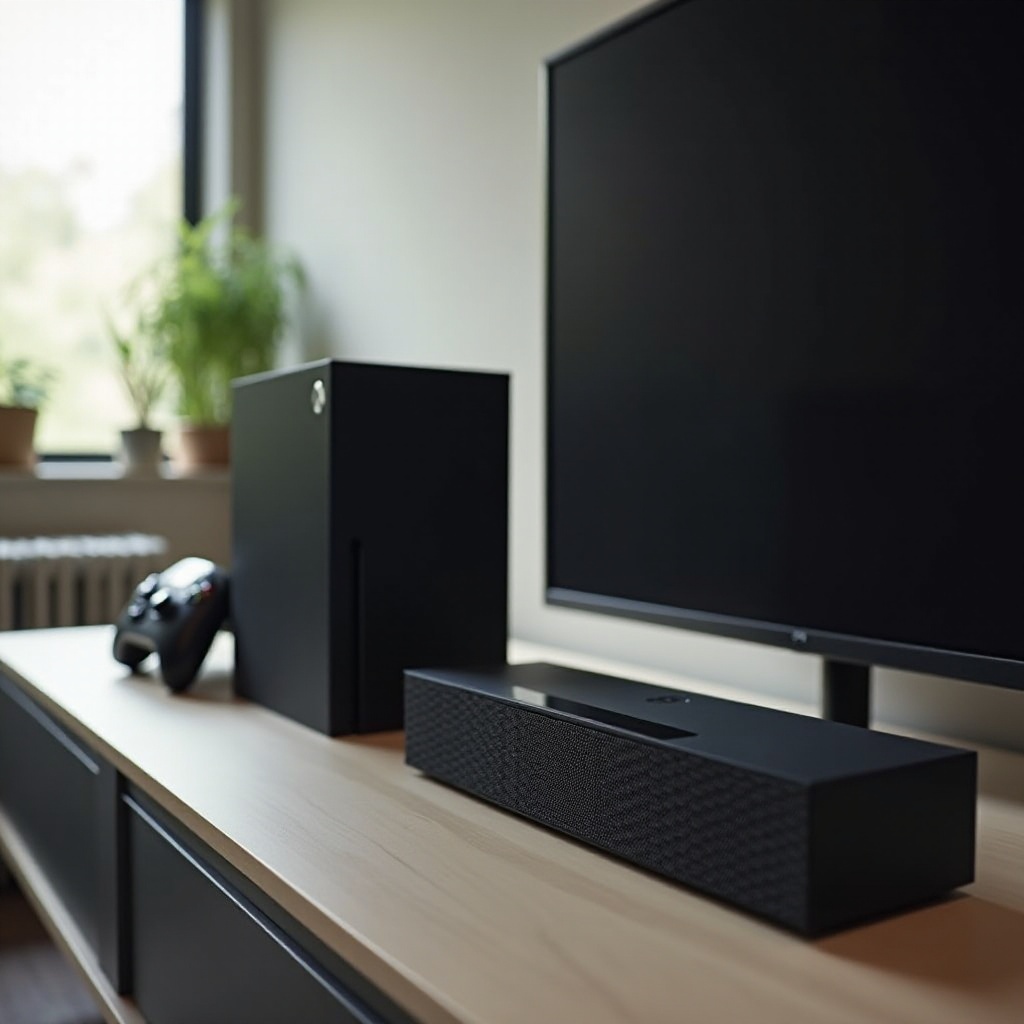
The allure of a richer, wireless audio experience during gaming sessions is undeniable, yet Xbox One presents a distinct challenge by not supporting Bluetooth audio by default. Despite this hurdle, you can still connect to a Bluetooth speaker with a few additional steps. Understanding the methods available can dramatically enhance your audio experience. This guide provides detailed insights into integrating your Bluetooth speaker with Xbox One through different techniques, ensuring an immersive gaming experience without the clutter of wires. Let’s delve into these solutions, ranging from Bluetooth transmitters to using smart TV connections and more. However, before exploring these options, it is essential to understand the limitations posed by Xbox One regarding Bluetooth connectivity.
Understanding Xbox One’s Bluetooth Limitations
Unlike some competing consoles, Xbox One does not come equipped with Bluetooth audio capabilities due to its focus on proprietary wireless technology optimized for controller connectivity. This decision has left many gamers embattled by the need for workarounds to connect Bluetooth audio devices. Although Xbox One prioritizes a seamless controller experience, this doesn’t mean it’s impossible to connect Bluetooth speakers. With a deeper understanding of the console’s design choices, you can overcome these challenges with the right tools.
Methods to Connect Bluetooth Speaker to Xbox One
Using a Bluetooth Transmitter
A pragmatic solution is utilizing a Bluetooth transmitter. Here’s a step-by-step guide:
- Acquire a compatible Bluetooth transmitter, preferably one with low audio latency.
- Attach the transmitter to Xbox One’s optical audio output or headphone jack, depending on your setup options.
- Follow the transmitter’s instructions to pair it with your Bluetooth speaker.
- Test the setup by adjusting the speaker’s volume to ensure a smooth audio transition.
This method forms a direct bridge, allowing your Xbox console to communicate wirelessly with your speaker.
Connecting via Smart TV
For those who want an alternative to dedicated transmitters, a smart TV can serve as an intermediary.
- Use an HDMI cable to connect your Xbox One to your smart TV.
- Ensure that the TV is equipped with a Bluetooth audio output capability.
- Access the TV’s Bluetooth settings to pair your speaker and TV.
- Set your TV’s audio output to Bluetooth mode for the sound to be seamlessly channeled from your Xbox One.
This method leverages existing technology you may already own, providing a pathway to Bluetooth audio without additional gadgets.
Alternative Wired Solutions
When wireless proves untenable, a wired connection offers a straightforward solution:
- Use an audio cable to connect from the Xbox controller’s headphone port to an external speaker’s AUX input.
- Ensure a secure connection and power on the speaker for clear sound output.
- Adjust audio settings on your console for the best tonal balance.
Wired connections guarantee reliable, latency-free audio, making them a viable fallback.
Troubleshooting Common Issues
Addressing Sound Quality Problems
Ensure proper sound settings by adjusting Bluetooth audio settings on both the transmitter and any intermediate devices. Choose high-quality settings to enhance sound.
Fixing Connectivity Issues
Bluetooth devices must stay within their operational range and free from interference. Troubleshoot connectivity by resetting both the transmitter and the speaker, and eliminating signal obstacles.
Resolving Speaker Recognition Problems
Make sure your speaker is in pairing mode during setup. Regularly check for firmware updates on both devices for compatibility enhancements.
Tips for Enhancing Your Audio Experience
Choosing the Right Bluetooth Speaker
Select a speaker known for low-latency and clear sound quality, particularly those designed for gaming. Recommendations and reviews can provide guidance on the best options.
Optimal Audio Settings for Gaming
Customize Xbox One’s audio settings to maximize sound quality, taking into account your room’s acoustics and your audio output setup. Tailor game, chat, and effects audio for a balanced experience.
Conclusion
Despite inherent limitations, Xbox One can still provide a rewarding wireless audio experience through clever use of available technology. With solutions like Bluetooth transmitters or smart TV audio outputs, you can effortlessly integrate Bluetooth speakers into your setup. By addressing any potential issues and fine-tuning the audio settings, you ensure enjoyable, immersive play. With the right approach, your gaming sessions can be enveloped in clear, dynamic sound, intensifying every detail of the game world.
Frequently Asked Questions
Can I connect a Bluetooth speaker directly to Xbox One without extra equipment?
No, Xbox One does not support direct Bluetooth audio connections; external devices like transmitters are needed.
What are the best Bluetooth transmitters for Xbox One?
Transmitters with aptX Low Latency are recommended for minimal audio lag, such as those from Avantree and TaoTronics.
How can I reduce audio lag when using Bluetooth speakers?
Opt for transmitters supporting aptX Low Latency and ensure that both the transmitter and speaker are compatible with this codec to reduce lag.