
Introduction
Streaming your Nintendo Switch gameplay is an excellent way to share your gaming adventures with a wider audience. Whether you’re showcasing a new skill in Smash Bros. or exploring the latest Zelda release, live streaming transforms gaming into a communal experience. This guide will lead you through streaming your Nintendo Switch games, equipping you with the steps and tips needed to start broadcasting on platforms like Twitch, YouTube, and Facebook Gaming.
Essential Equipment for Streaming
Having the correct equipment is vital for a successful streaming setup. Here’s what you’ll need:
Hardware Requirements
- Nintendo Switch: Essential for gameplay.
- Capture Card: Devices such as the Elgato HD60 S offer seamless video capture and are highly recommended.
- Computer: A reliable PC or Mac is required for running streaming software and video processing.
- Internet Connection: A steady, high-speed internet connection ensures quality streaming without interruptions.
Software Recommendations
- OBS Studio: Free and open-source software that stands out for its versatility and robust features.
- Streamlabs: Known for its ease of use, ideal for beginners merging OBS functions with additional features.
- XSplit: Another powerful tool, valued for its user-friendly interface.
With all necessary hardware and software in place, you’re ready to set everything up.
Setting Up Your Streaming Software
With your equipment ready, it’s time to configure your setup for streaming:
Installing and Configuring OBS Studio
- Download and Install OBS Studio: Visit the OBS Studio website, download the version suitable for your OS, and complete the installation.
- Initial Configuration: After launching OBS, use the setup wizard to optimize your settings based on your system’s specifications.
Capture Card Setup
- Connect the Capture Card: Use an HDMI cable to link your Nintendo Switch to the capture card, then connect the card to your computer using USB.
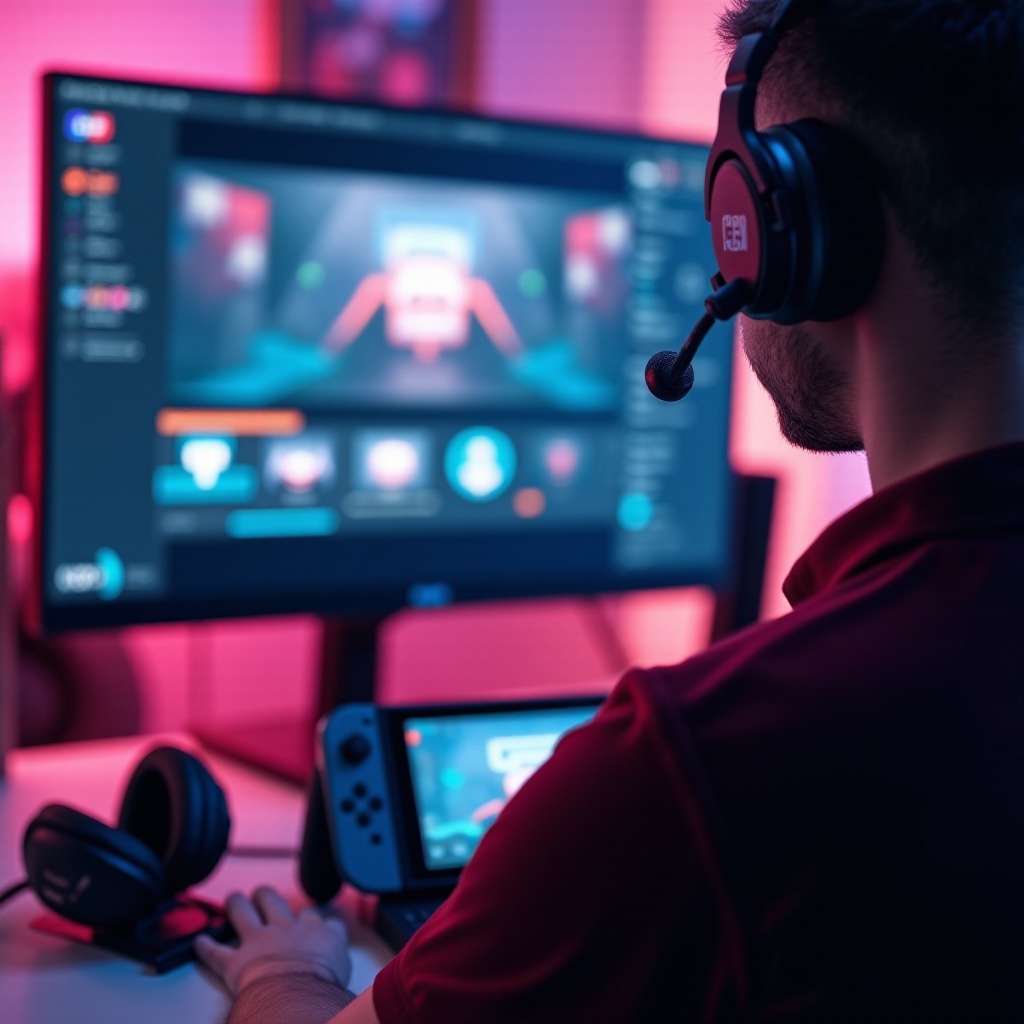
- Configure OBS for Video Capture: In OBS, add a new ‘Video Capture Device’ source, select your capture card from the options, and preview your gameplay.
This preparation sets the stage for selecting and configuring your streaming platform.
Streaming to Major Platforms
Once your setup is ready, it’s time to start streaming. Each platform offers unique audiences and features:
Streaming on Twitch
- Create a Twitch Account: Sign up for an account on Twitch if you haven’t already.
- Get Stream Key: In your Twitch account settings, go to ‘Channel and Videos’ and copy your stream key.
- Link OBS to Twitch: Access OBS ‘Settings’, choose ‘Twitch’ as your service, and input your stream key.
Streaming on YouTube
- YouTube Account Setup: Confirm your YouTube account is eligible for live streaming, which may require verification.
- Create a Live Stream Event: On YouTube’s dashboard, initiate a new live stream and get your stream key.
- Configure OBS for YouTube: Just like with Twitch, input your YouTube stream key into OBS settings.
Streaming on Facebook Gaming
- Set Up a Gaming Creator Page: Essential for streaming game content.
- Create a Live Stream: In Facebook Creator Studio, start a new stream and acquire your stream key.
- OBS Configuration for Facebook: Enter your stream key into OBS to start your broadcast.
Choosing your preferred platform gets you ready to dive into the action, engage with viewers, and build your community.
Optimizing Your Stream Quality
To keep viewers engaged, ensuring high-quality streams is crucial:
Video and Audio Settings
- Maintain a minimum resolution of 720p for clarity.
- Choose frame rates of 30 or 60 FPS, based on internet speed and computer capabilities.
- Adjust audio settings for crisp and clear sound levels.
Dealing with Lag and Buffering
- Close unnecessary applications consuming bandwidth.
- If viewers experience buffering, reduce stream resolution or bitrate.
- Prefer wired internet connections over Wi-Fi for better stability.
A quality stream enhances viewer retention and helps grow your channel effectively.
Engaging with Your Audience
To convert casual viewers into dedicated followers, create an engaging stream:
Using Overlays and Alerts
- Enhance your stream with overlays displaying chat, new subscribers, and donations.
- Use alerts to acknowledge new followers or donations, fostering a connection with your audience.
Building a Streaming Community
- Interact with viewers through chat, cultivating a welcoming and interactive space.
- Encourage discussions and respond to comments during gameplay moments to boost engagement.
Focusing on audience engagement makes your channel grow more naturally through loyalty and word-of-mouth.
Conclusion
Streaming your Nintendo Switch games can be an exciting and rewarding venture. This guide has equipped you with the necessary tools to start streaming confidently. Whether you’re streaming for fun or aiming to build a following, these steps will help you embark on your streaming journey successfully.
Frequently Asked Questions
Can I stream Nintendo Switch without a capture card?
While a capture card is recommended for the best quality, alternative methods like using an Xbox One as a passthrough can allow streaming without one.
What are the best streaming software options for beginners?
OBS Studio and Streamlabs are excellent choices due to their user-friendly interfaces and robust community support.
How can I improve my stream’s video quality?
Ensure you use high-quality HDMI cables, maintain an optimal internet connection, and adjust your OBS settings for the best resolution and bitrate.